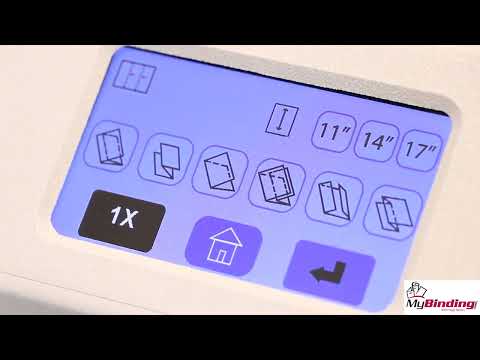
The FD 38Xi Fully Automatic Touchscreen Document Folder delivers high-speed, professional folding with simple, one-touch operation. Its full-color touchscreen, fully automated fold plates, and AutoStack™ stacker wheels enable quick setup using any of the 18 pre-programmed folds or up to 36 stored custom jobs. Designed for productivity, it folds up to 17,000 sheets per hour, and operators can load up to 500 sheets, select a fold, press start, and walk away while documents neatly collect on the telescoping conveyor. The dedicated Multi-Sheet Feeder processes up to four stapled or unstapled sheets at a time, with fold customization for letter and legal stock. Advanced software allows full configuration of fold types and paper sizes for unique applications. For additional efficiency, the optional V-Stack36i Vertical Stacker can be added to neatly stack up to 22" of folded documents. When speed, automation, and consistent quality are essential, the FD 38Xi is an outstanding solution for schools, businesses, and print-for-pay environments.
Product Details
Folds up to 17,000 sheets per hour
Color touchscreen interface
Telescoping conveyor system for organized output
Adjustable stacker wheels
18 pre-programmed fold settings
Dedicated multi-sheet feeder
Stores up to 36 custom fold programs
Drop-in three-roller feed system for consistent feeding
Noise-reduction design
6-digit resettable counter & 8-digit life counter
AutoBatch™ mode
Cross-folding guide
Easy-off feed wheel shaft for quick maintenance
Seven-point fold stops for precise folds
Removable roller cover for easy cleaning and service
Specifications
Speed: Up to 17,000 sheets per hour - based on 11" (279mm) Z-Fold
Hopper Capacity: Up to 500 sheets 20# (75 gsm)
Pre-Set Folds: Pre-programmed for C,V,Z, Gate, Fold Out and Double Parallel
Up to 17,000 sheets per hour – based on 11" (279mm) Z-Fold
Up to 500 sheets 20# (75 gsm)
Pre-programmed for C,V,Z, Gate, Fold Out and Double Parallel
N/A
11", 14", 17", A5, A4, A3, B6, B5, B4
Min: 3.5" W x 5" L (88.9 W x 127 L mm), Max: 12.25" W x 18" L (311 W x 457 L mm)
Closed: 33" L x 20" W x 19" H (84 L x 51 W x 48 H cm), Fully Extended: 60" L x 20" W x 19" H (152 L x 51 W x 48 H cm)
73 lbs (33kg)
110-240VAC 50/60 Hz
FD 300-20 - Multi-Sheet Feeder
UL & CE applied for
90 Days Warranty Parts
FD 38Xi
Up to 17,000 sheets per hour – based on 11" (279mm) Z-Fold
Up to 500 sheets 20# (75 gsm)
Pre-programmed for C,V,Z, Gate, Fold Out and Double Parallel
N/A
11", 14", 17", A5, A4, A3, B6, B5, B4
Min: 3.5" W x 5" L (88.9 W x 127 L mm), Max: 12.25" W x 18" L (311 W x 457 L mm)
Closed: 33" L x 20" W x 19" H (84 L x 51 W x 48 H cm), Fully Extended: 60" L x 20" W x 19" H (152 L x 51 W x 48 H cm)
73 lbs (33kg)
110-240VAC 50/60 Hz
N/A
UL & CE applied for
90-Day Warranty on Parts
Video
Formax FD 38Xi Fully Automatic Document Folder Demo Video
Transcript :
Formax presents the next generation FD 38xi touch screen fully automatic document folder. For the past 20 years, FORMAX has been providing quality innovative folders built to last and made in the USA. The new FD 38xi is no exception, itš™s the ultimate user friendly folder combining speed, accuracy, quality and durability with fully automatic settings in a modern touch screen interface. The automated fold settings and automatic stacker wheels allow for quick an easy setup between fold types and paper sizes. Operation is simple, load paper into the feeder, select you fold type and press start. At a speed of up to 17,000 folds per hour sheets are folded and ready in minutes. The large 3.5 inch color touch screen uses internationally recognized symbols to easily navigate through setup and operation. The FD 38xi can fold sheets up to 12 inches by 18 inches and is programmed to automatically set six common fold types in 11 inch, 14 inch, and 17 inch lengths. In addition, up to 36 custom folds can be programmed into memory for recurring unique applications. Fully loaded, the FD 38xi holds up to 500 sheets at a time, the drop in three roller friction feed system allows for consistent reliable feeding making quick work of any folding job. The FD 38xi also features the FORMAX patented Telescoping Outfeed Conveyor stacker that can hold up to 500 folded sheets when fully extended. This allows for a complete stack of documents to run through the folder before unloading. A resettable 6-digit counter gives an accurate tally of the number of sheets folded. Simply press the reset icon to set the counter back to zero. In addition to the standard counter, the FD 386xi features auto batch mode for processing sets of documents with a delay between each set for easy handling and grouping. The patented Multi Sheet Feeder is a standard feature designed to fold multiple page documents, it can fold up to 4 stapled or unstapled sheets up to 8 ½ inches by 14 inches in a single pass. The feeder has an independent skew adjustment for fine tuning folds. The FD 386xi also features a Cross-Fold guide for feeding folded documents a second time for additional folding. Proudly made in the USA, The FD 386xi Touch Screen Fully Automatic Document Folder is an ideal solution for any business, print shop or school that requires multiple fold capabilities combined with ease of operation versatility and reliability.